
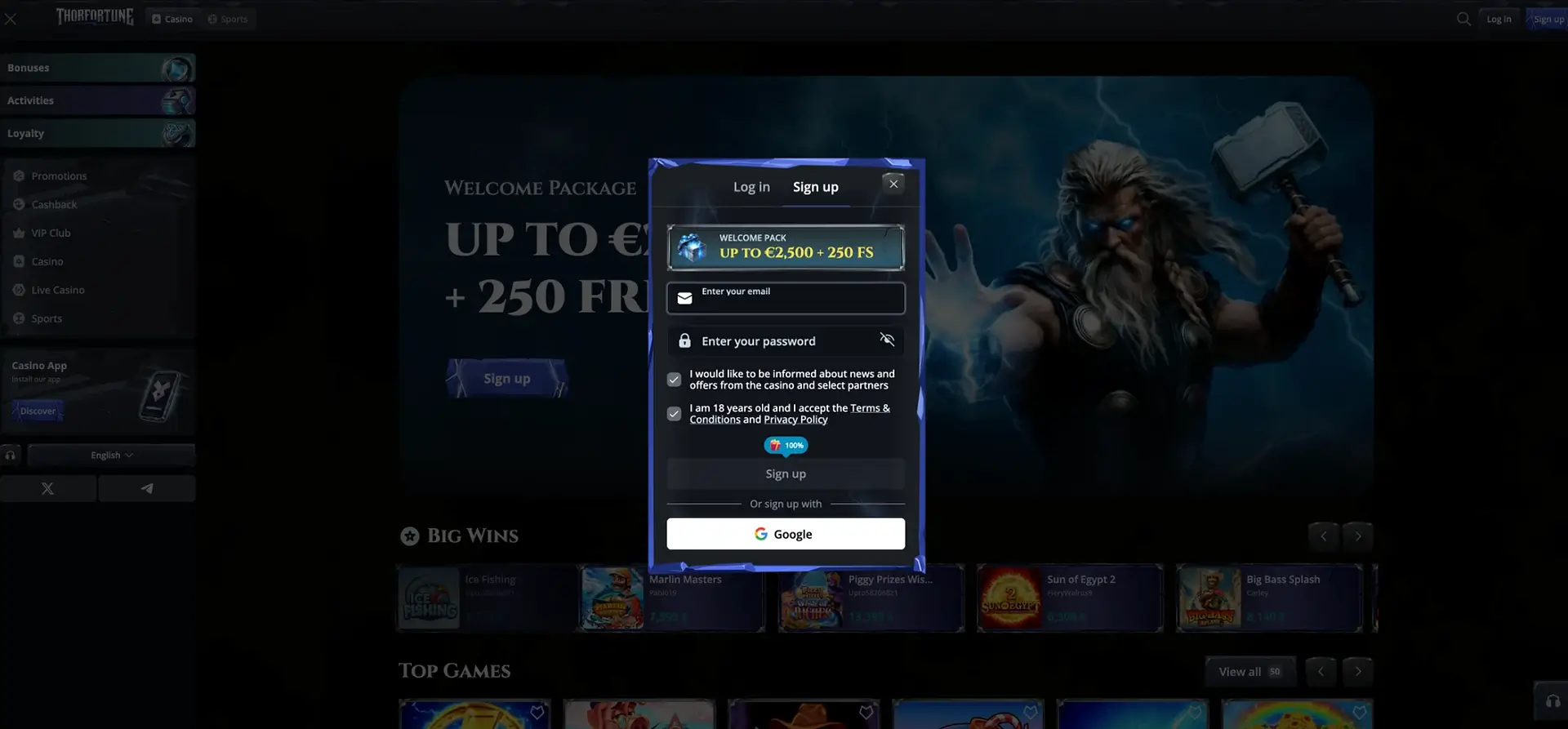
Thorfortune registration starts from the Sign Up button. The visible form asks for an email address and password, displays a Welcome Package of up to £2,500 + 250 free spins, and then requires users to confirm that they are of legal age and accept the Terms and Conditions and Privacy Policy. There is also an option to create an account with Google.
Before confirming, read the bonus rules and enter accurate details. Your name, date of birth, address and payment method may be checked later, particularly before a withdrawal. Inconsistent information can delay account processing.
| Step | Visible information |
|---|---|
| Access button | Sign Up in the top-right corner |
| Email address | Enter your email address field |
| Password | Enter your password field |
| Offer displayed | Welcome Package of up to £2,500 + 250 free spins |
| Marketing communications | Checkbox for casino news and offers from selected partners |
| Age requirement | Confirmation that the user is at least 18 years old |
| Documents | Terms and Conditions and Privacy Policy |
| Alternative registration | |
| Offer currency | GBP |
The initial form is short and is based on an email address and password, with Google as an alternative. Additional personal information may be requested after the account has been created or during verification.
How to Create a Thorfortune Account
The following procedure explains how to create a Thorfortune account in a logical order. Every action should be completed on the official domain and with the account holder’s own details.
- Open the official website and click Sign Up.
- Enter a personal email address that you check regularly.
- Create a unique password using several types of character.
- Read the checkbox relating to marketing communications and set it according to your preferences where the form allows this.
- Confirm that you are at least 18 years old.
- Open the Terms and Conditions and Privacy Policy before accepting them.
- Check the details and click Sign Up.
- Open the confirmation message if email verification is required.
Once you have completed the procedure, check that the expected result appears correctly in your account. If anything differs, avoid repeating the operation immediately and consult the available help information.
Registration with Google
The Google button appears below the form. This method avoids the need to enter a casino-specific password immediately, but it links access to the selected Google account. Choose the correct profile and protect it with its own security measures.
How to Choose a Secure Password
The following points cover the essential elements of choosing a secure password. They are practical checks to make before moving to the next step or using the relevant feature.
- Use a long phrase or combination that is difficult to guess.
- Do not reuse the password for your email account.
- Avoid using your name, date of birth, phone number or the casino name.
- Store it in a reputable password manager.
- Never share it with anyone claiming to be a member of the support team.
Taken together, these points provide a clear framework for choosing a secure password. They do not replace the conditions displayed in the account, particularly where amounts, time limits or eligibility requirements are involved.
Bonus Displayed During Registration
The window displays a Welcome Package of up to £2,500 + 250 free spins. The bonus screens show that it is distributed across three deposits:
- first deposit: up to £1,500 + 150 free spins;
- second deposit: 55% up to £500 + 100 free spins;
- third deposit: 100% up to £500.
The minimum deposit, wagering requirement and eligible games do not appear in the screenshots. Check the full offer details before depositing. The fact that the package is shown in the registration window does not mean that the maximum amount is credited automatically.
Details Worth Preparing
The first screen only requests an email address and password, but the profile may require further details after it has been created:
- legal first and last name;
- date of birth;
- residential address;
- phone number;
- account currency;
- verification documents if requested by the service.
Taken together, these points provide a clear framework for the details worth preparing. They do not replace the conditions displayed in the account, particularly where amounts, time limits or eligibility requirements are involved.
Email Address Verification
The screenshot does not show the next step. If a verification email is sent, open it from the inbox linked to the account. Do not click a link whose domain does not match the official service. If you cannot find the message, check the Spam, Junk and Promotions folders.
KYC After Creating the Account
The verification section is not visible, but checks may be requested before a withdrawal or during a security review. Typical documents may include proof of identity, proof of address and evidence of the payment method. Submit them only through the secure account area.
Common Thorfortune Registration Errors
Email Address Already Used
An account may already exist. Go to the Log In tab and use Forgot your password? instead of creating a second profile.
Password Rejected
Make it longer and use several types of character. When copying and pasting, avoid adding spaces at the beginning or end.
Sign Up Button Inactive
Check that every field is complete and that the mandatory checkbox relating to age and the terms has been selected.
Google Registration Enters a Loop
Allow pop-up windows, choose a single Google account and try again in a private browsing window.
Country or Service Unavailable
Do not try to bypass a restriction. Availability depends on your place of residence, the operator’s terms and applicable UK law.
After Registration
The following procedure presents the steps to take after registration in a logical order. Every action should be completed on the official domain and with the account holder’s own details.
- Confirm your email address and complete the profile.
- Review the rules for the selected bonus.
- Open the cashier and compare deposit and withdrawal methods.
- Set personal limits before making any transaction.
- Enable the available account protections.
- Keep evidence of deposits and verification.
Once you have completed the procedure, check that the expected result appears correctly in your account. If anything differs, avoid repeating the operation immediately and consult the available help information.
Frequently Asked Questions About Thorfortune Registration
What details are requested on the first screen?
An email address and password.
Can I create an account with Google?
Yes. The Google button appears below the standard form.
How old do I need to be?
The form requires confirmation that you are at least 18 years old. UK law and the operator’s terms may impose further restrictions.
Is the bonus activated automatically after registration?
The package is displayed in the window, but it is linked to three deposits and to conditions that do not appear in the screenshots.
Do I need to verify my identity immediately?
The screenshot does not show this step. Verification may be requested later, particularly before a withdrawal.
Can I change my email address after creating the account?
This feature does not appear in the screenshot. A change may require help from customer support and a security check.
Why should I avoid having several accounts?
Casino terms usually restrict users to one account per person. Check the official rules before attempting to create a new account.